How to restrict windows search to internal only
Windows Search in new versions of Windows, including Windows 10 and Windows 11, defaults to searching the web using Bing. This is because Microsoft has integrated Bing as the default search engine in these versions of Windows. This integration pushes queries to Bing's search capabilities directly from the Windows search bar instead of user content first.

Windows Search is a content index and desktop search platform developed by Microsoft, introduced in Windows Vista as a replacement for the Indexing Service of Windows 2000, Windows XP, and Windows Server 2003. It is designed to facilitate local and remote queries for files and non-file items within the Windows Shell and compatible applications.
Windows Search creates a local index of files, including audio tracks, documents, folders, programs, photos, and videos, as well as non-file items such as contacts and messages from Microsoft Outlook, along with their metadata. This index allows users to perform incremental searches based on details such as contents, dates, names, types, and sizes. The platform was introduced to enhance search result rapidity, simplify data discovery, and unify desktop search platforms across Microsoft Windows. It has received several updates since its introduction and is available in various versions of Windows, including Windows 7, Windows 8, Windows RT, Windows 8.1, Windows 10, and Windows 11.
Windows Search offers several features, including natural language searches, which allow users to search for things like “photo taken last week” or “email sent from Aku.” It also supports queries against a remote index and indexes offline caches of network shares, making it possible to search files on remote servers. The search tool is also customizable, allowing users to control search settings, including the ability to include or exclude adult content, and to manage search history and privacy.
Lately there has been an invasive approach on Windows 10 and 11 where search queries are pointed online without any concerted effort within the User Interface or User Experience to opt out. Computing systems are setup with varied goals and it is out of place to not make intentional provision for such an option as they are doing with Copilot and Cortana.
How to remediate the Search to only Internal index
Follow any of the steps below to restrict searches to only your computer content. You can always search the web with your browser.
Block Windows Search in Windows Defender Firewall
To prevent Windows Search from accessing the web, block Windows Search in Windows Defender Firewall by navigating to Windows Security Advanced Settings, selecting Outbound Rules, sorting rules alphabetically, finding Windows Search, and choosing to block the connection
Modify Registry Settings
- Access the Registry Editor by pressing Windows key + R, typing regedit.exe,
- Navigate to HKEY_LOCAL_MACHINE\SOFTWARE\Policies\Microsoft\Windows,
- Create a new key named Windows Search, adding a new Dword (32-bit) Value named PreventIndexingOutlook, and setting its value to 1.
- Restart the PC after making these changes.
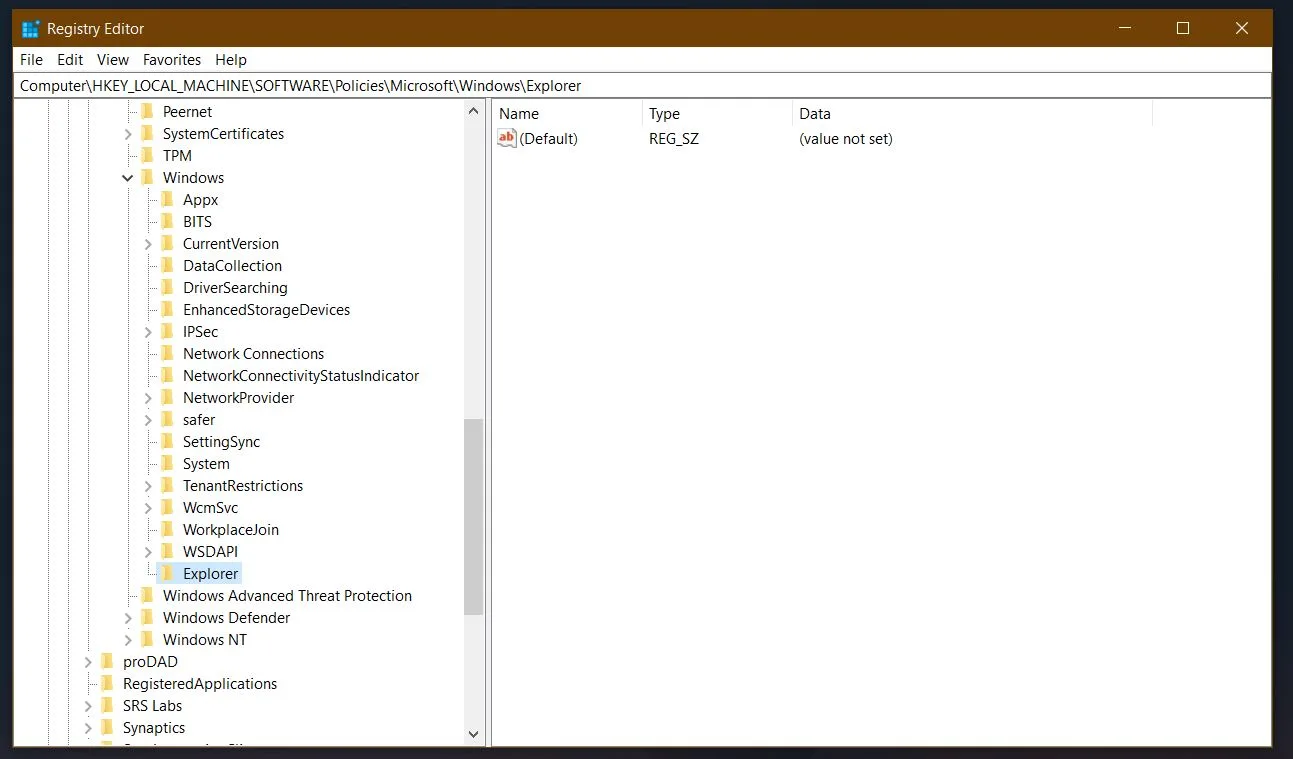
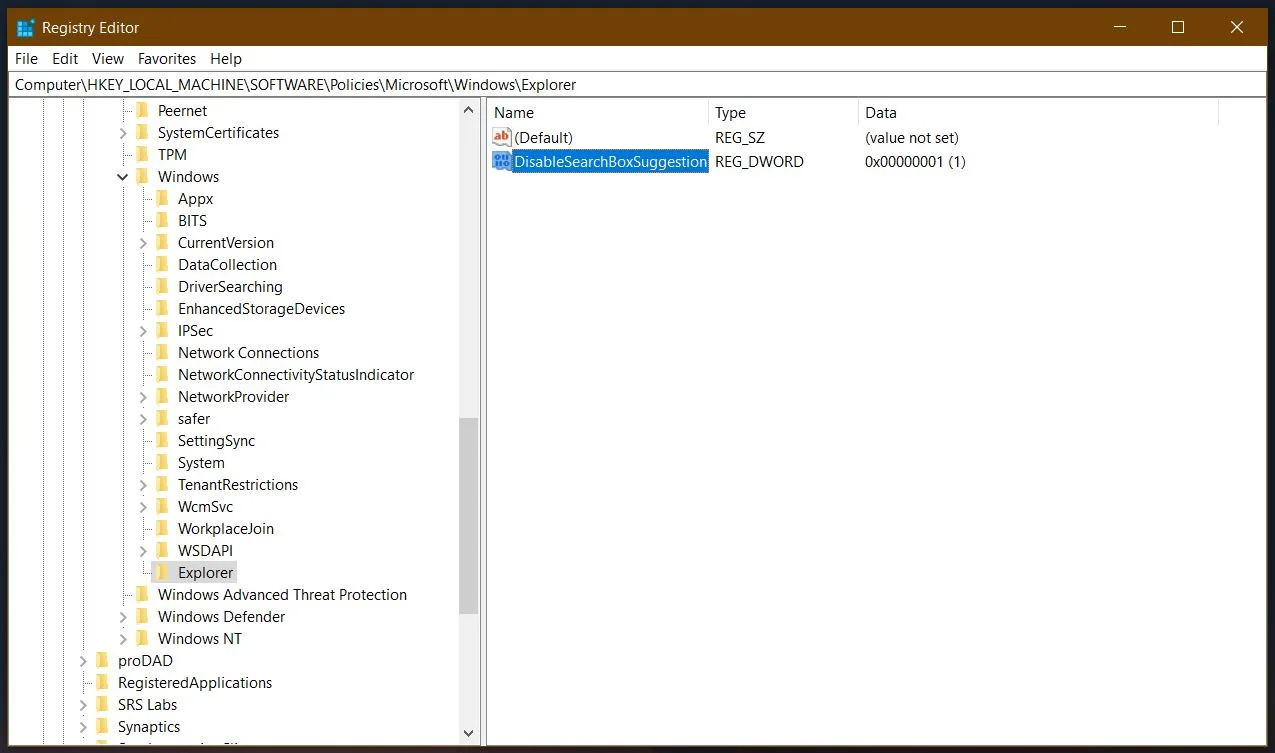
By following any of these two steps, you can effectively restrict Windows Search to internal sources only, Preventing it from accessing the web for search results. After-all that is what Web Browsers are meant for, to have isolation of invasive risk. Invasive risk here may be relative for varied use cases which have no concern for indexes and live web searches; this article is not meant for you advanced personnel.


















Conversation
Login to comment.
Log In / Register