Do you have to double boot Windows 11 before Password Field receive entry – here is a fix
On the first boot, Windows reaches the lock screen visually, but the credential provider (the component that handles password/PIN input)
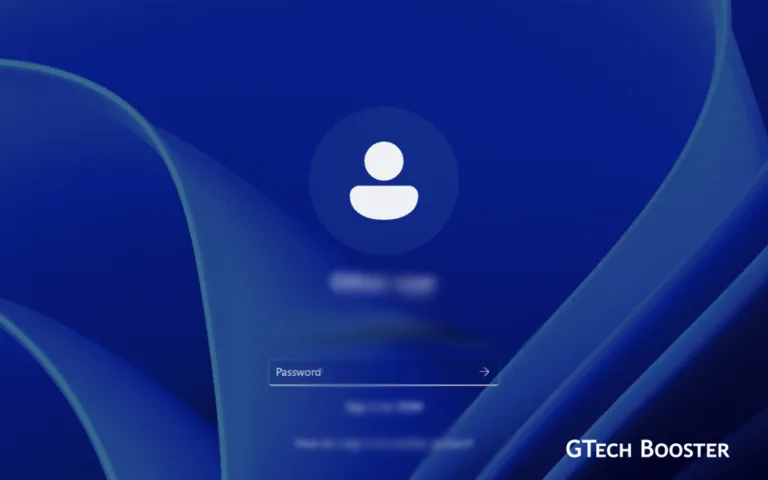
This is a well-known Windows 11 issue where the system appears to fully boot to the lock screen, but the password input field is unresponsive or completely absent; requiring a restart (or sleep/wake cycle) before login actually works.
What It Is
On the first boot, Windows reaches the lock screen visually, but the credential provider (the component that handles password/PIN input) either:
- Fails to fully initialize.
- Gets stuck in a loading state.
- Renders the UI without actually connecting it to the authentication backend.
The screen looks ready, but typing does nothing; or the password box simply doesn’t appear.
Why It Happens
Several root causes are known:
Fast Startup (Hybrid Boot) Conflicts
Windows 11’s “Fast Startup” doesn’t do a full shutdown — it saves a hibernation snapshot of the kernel. If that snapshot is slightly corrupted or outdated (e.g., after an update), the credential UI can fail to initialize properly on resume.
Credential Provider / Winlogon Failure
The winlogon.exe process or the LogonUI.exe process sometimes doesn’t fully load on the first pass, especially after updates or driver changes
TPM / Secure Boot Initialization Lag
Windows Hello and BitLocker rely on the TPM chip. If the TPM takes longer than expected to respond (common after BIOS/firmware updates), the login UI loads before authentication is ready.
Outdated or Corrupt Display / GPU Drivers
A partially initialized GPU driver can cause the lock screen to render without being fully interactive.
Pending Windows Updates
Background update finalization can hold up credential services during the first boot session.
Third-Party Security Software
Antivirus or endpoint security tools that hook into the login process can delay or block the credential provider.
How fix it
The fixes below can help remedy the situation, you however apply this fix at your own risk. Should you decide to take the risk, be sure to apply them in order and only proceed to the next option when you have rechecked to ensure the situation still persists before moving to apply the next fix.
It would be better to observe your usage in a weekly interval before apply another fix.
a. Disable Fast Startup
Control Panel → Power Options → Choose what the power buttons do → Turn off fast startup
b. Update GPU Drivers
Device Manager → Display Adapters → Update driver
c. Run SFC & DISM
sfc /scannow and DISM /Online /Cleanup-Image /RestoreHealth in admin CMD
d. Check Windows Update
Ensure all pending updates + optional driver updates are installed.
e. Reset Credential Provider
Via registry: HKLM\SOFTWARE\Microsoft\Windows\CurrentVersion\Authentication\Credential Providers — check for corrupt entries.
f. Disable third-party antivirus at startup
Test if the issue disappears; if so, reconfigure or update the AV.
g. Update BIOS/UEFI firmware
Especially if TPM-related; check your motherboard/OEM support page.
h. Check Event Viewer
eventvwr.msc → Windows Logs → System/Application — look for errors at boot time from Winlogon or LogonUI
Quick Workaround (While Troubleshooting)
If you need immediate relief without a full fix:
- Press Ctrl + Alt + Del on the stuck lock screen — this often forces the credential UI to reload
- Click the screen / move the mouse then wait 10–15 seconds before typing
- Use Sleep → Wake instead of full reboot — sometimes less disruptive to credential services
This behavior is caused by a Windows 11 sign‑in or Fast Startup bug, and in many cases it can be fixed through a few settings tweaks as outlined above. As mention earlier, following the fix is at you own risk.
More Information ℹ













Conversation
Login to comment.
Log In / Register