How to set up two-factor authentication for beginners
Think of your password like a front door key. It’s great, but if someone steals it, they’re in. Two-Factor Authentication (2FA) adds a deadbolt that requires a second key,usually something only you have access to, like your phone.
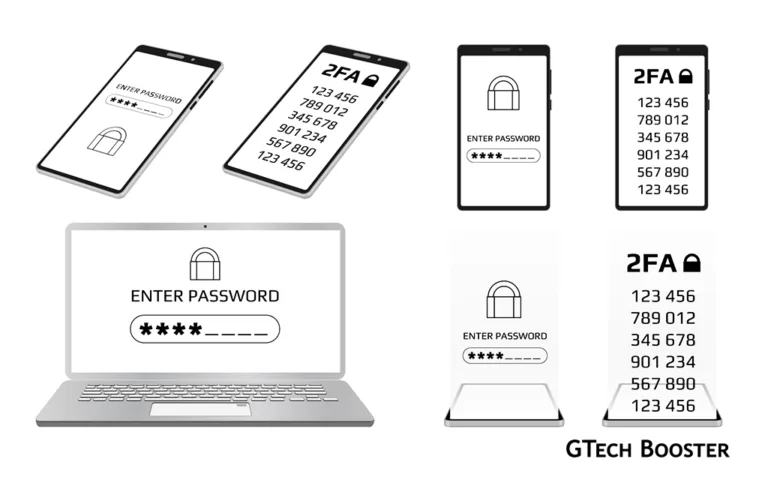
You have probably been told to turn it on. You may have been nudged by apps, warned by security articles, and reminded by IT departments. Two-factor authentication or 2FA is one of the most consistently recommended security measures available to ordinary people, and for good reason. But the advice to enable it is rarely accompanied by an explanation of what it actually does, why it works, and what is happening beneath the surface when you receive that six-digit code on your phone.This is both a practical guide to setting it up and a thorough explanation of the science and engineering that makes it one of the most effective defences against unauthorised account access available today.
The core idea: something you know and something you have
Authentication
Proving to a system that you are who you claim to be has traditionally relied on a single factor: a password. Something you know. The weakness of this approach is that knowledge can be stolen, guessed, intercepted, or extracted without your awareness. Once someone else knows what you know, the authentication system cannot distinguish between you and them.Two-factor authentication addresses this by requiring a second independent factor from a different category. The three categories that security professionals work with are:
Something you know
A password, PIN, or security question answer. This exists in memory or writing and can be stolen through phishing, data breaches, shoulder surfing, or social engineering.
Something you have
A physical device, a hardware token, a SIM card, or an authenticator app on a specific phone. This exists in the physical world and requires an attacker to either physically possess the device or compromise it remotely.
Something you are
A biometric characteristic such as a fingerprint, facial geometry, iris pattern, or voice. This exists in your biology and is difficult but not impossible to replicate.
Two-factor authentication combines any two of these categories. The most common combination in everyday use is something you know (your password) plus something you have (your phone, generating or receiving a code). The security gain is significant because an attacker who steals your password through a data breach does not have your phone. An attacker who steals your phone does not know your password. Compromising both simultaneously and in a coordinated way is dramatically harder than compromising either one alone.
This is the principle. The implementation details and the science behind them are where it gets genuinely interesting.
The types of second factor and how they differ
Not all second factors are equally strong, and understanding the differences helps you make better choices about which method to use for which accounts.
SMS text message codes
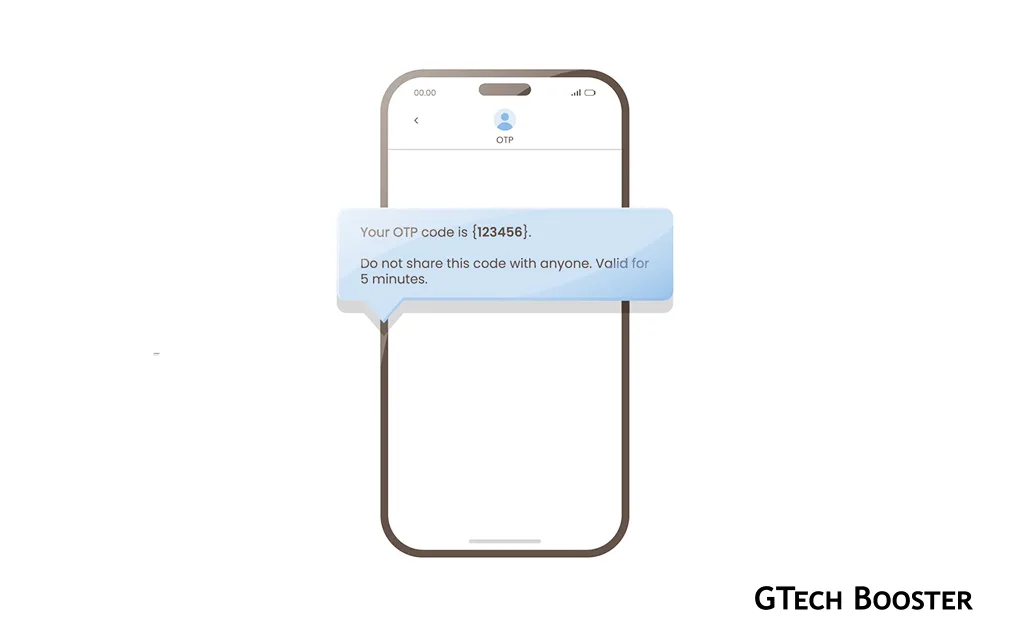
The most widely deployed form of 2FA sends a one-time code to your phone number via SMS. You enter your password, the service sends a six-digit code to your registered number, you enter that code, and access is granted. This is better than no second factor at all, but it is the weakest form of 2FA available for reasons that are worth understanding.
The SMS system was designed in the 1980s as part of the GSM mobile telephone standard. The protocol that underlies it SS7, or Signalling System No. 7 was built for a world where the only parties connecting to the telephone network were trusted telecommunications companies. It contains virtually no authentication of the parties sending and receiving routing instructions. This means that a sophisticated attacker with access to the SS7 network; which includes various state actors, some criminals, and in some cases researchers who have demonstrated the vulnerability publicly can intercept SMS messages, redirect them, or read them without the recipient’s knowledge.
Beyond SS7 vulnerabilities, SMS codes are also susceptible to SIM swapping. A social engineering attack in which an attacker convinces your mobile carrier’s customer service staff that they are you and requests a transfer of your phone number to a SIM card they control. Once your number is ported to their SIM, they receive all SMS messages sent to it, including 2FA codes. SIM swapping attacks have been used to steal millions of dollars in cryptocurrency and compromise high-profile accounts, and they require no technical sophistication only a convincing phone call and some personal information about the victim that is often available from previous data breaches. SMS-based 2FA is a meaningful improvement over a single password, and enabling it is better than not doing so. But if you have the option to use a stronger method for your most important accounts, you should.
Authenticator apps (TOTP explained)
Authenticator apps; Google Authenticator, Microsoft Authenticator, Authy, and others generate six or eight digit codes that change every thirty seconds. You open the app, find the entry for the service you are logging into, and enter the current code. This method is substantially more secure than SMS and is available for most major services.
The science behind how these codes are generated is elegant and worth understanding in full. The system is called TOTP (Time-based One-Time Password) and it is defined in a publicly documented standard called RFC 6238.
How TOTP works
When you set up an authenticator app for a service, typically by scanning a QR code, what you are actually doing is transferring a secret value from the service’s server to your authenticator app. This secret is a randomly generated string of bytes, typically 20 bytes long (160 bits), and it is stored both on the server and in your authenticator app. This single shared secret is the foundation of everything that follows.
To generate a code, the authenticator app performs the following computation. First it takes the current Unix timestamp; the number of seconds that have elapsed since 1 January 1970, and divides it by 30, discarding the remainder. This produces a counter value that advances by 1 every thirty seconds and is identical on any device with an accurate clock at any given moment. The server, performing the same calculation independently, arrives at the same counter value. The app then applies a cryptographic function called HMAC-SHA1 (Hash-based Message Authentication Code using the SHA-1 hashing algorithm) to the combination of the shared secret and the current counter value.
HMAC is a construction that uses a cryptographic hash function and a secret key to produce a fixed-length output that is computationally infeasible to reverse or forge without knowing the secret. Even a tiny change in either input (a different secret, or a counter value one step earlier or later) produces a completely different output with no predictable relationship to the original. The output of HMAC-SHA1 is 20 bytes long. The final step extracts a six-digit number from this output through a process called dynamic truncation, a specific byte within the output is used to determine an offset, and four bytes starting at that offset are extracted and interpreted as a 32-bit integer, from which the last six digits are taken as the code.
The result is a six-digit number that is valid for thirty seconds, after which the counter advances and the calculation produces an entirely different number. The server performs the identical calculation using the same shared secret and the same current counter value and checks whether the code you entered matches. If it does, authentication proceeds. If it does not, access is denied.
Because the secret never leaves the server and the app after the initial setup, there is nothing to intercept during normal use. The codes are not transmitted from any server to you, they are independently calculated by both your app and the server and compared. An attacker cannot receive a code because no code is sent. They would need to either steal the shared secret from the server (a breach of the service itself) or steal it from your phone directly. The thirty-second window means the code is useless moments after it expires, and the mathematical properties of HMAC mean that knowing one valid code gives no information about any future code. This is a fundamentally different security model from a password, which remains valid indefinitely until changed.
Clock synchronisation and drift
Because TOTP depends on both the server and the app computing the same counter value which is derived from the current time accurate clock synchronisation is important. Most authenticator apps and servers tolerate a small amount of clock drift by accepting codes from the immediately preceding or following 30-second window, typically allowing a tolerance of one or two steps in either direction. This accommodates minor timing discrepancies without meaningfully weakening security, since the window of validity remains short. A real life example is Flutterwave 2FA code, it only works after the code expires on the user screen, not before it disapear with a new code.
If your phone’s clock drifts significantly, which can happen if automatic time synchronisation is disabled, TOTP codes may stop working. Most authenticator apps include a time synchronisation feature to correct this.
Hardware security keys (the strongest consumer option)
Hardware security keys; devices like the YubiKey, Google Titan Key, or similar products, are small physical devices that plug into a USB port or communicate via NFC. They implement a standard called FIDO2 (also known as WebAuthn) or its predecessor U2F, and they represent the strongest form of consumer 2FA currently available.
The cryptography behind hardware keys
Hardware security keys use public key cryptography, a branch of cryptography based on mathematical problems that are easy to compute in one direction and computationally infeasible to reverse. When you register a hardware key with a service, the key generates a unique cryptographic key pair, a public key and a private key. The public key is sent to and stored by the service. The private key never leaves the hardware device under any circumstances. It is generated on the device, stored on the device, and used on the device. It cannot be extracted, copied, or transmitted. When you authenticate, the service sends the hardware key a challenge; a random piece of data. The key’s secure processor uses the private key to compute a digital signature of that challenge, using an algorithm such as ECDSA (Elliptic Curve Digital Signature Algorithm). The signature is sent back to the service, which verifies it using the stored public key. If the signature is valid (if it could only have been produced by the private key corresponding to the stored public key) authentication succeeds.
An attacker who intercepts the exchange gains nothing useful. They see the challenge and the signature, but they cannot derive the private key from these, because the mathematical relationship between a private key and the signatures it produces is a one-way function. Solving it in reverse would require computational resources that are, for practical purposes, unavailable.
Phishing resistance (the critical advantage)
Hardware security keys have one property that makes them categorically superior to both SMS codes and TOTP for protecting against the most common real-world attacks: they are inherently phishing-resistant.
When a key signs a challenge, it incorporates the origin (the domain of the website making the request) into the data being signed. If you are on the genuine website gtechbooster.com, the key signs a challenge that includes google.com. If you have been tricked into visiting a fake site at gooogle.com, a common phishing technique; the key signs a challenge including gooogle.com. The real service, checking the signature against the expected origin, rejects it immediately. This means that even if an attacker constructs a perfect replica of a login page and tricks you into entering your password and your TOTP code in real time (a technique called a real-time phishing proxy attack), they cannot replicate the hardware key authentication. The key will refuse to produce a valid signature for any origin other than the one it was registered with, regardless of how convincing the fake site appears to the human user.
This phishing resistance is the reason that Google, which issued hardware security keys to all its employees in 2017, reported zero successful phishing attacks on employee accounts in the period following that rollout.
Push notification authentication
Some services and dedicated authentication apps like Duo Security use a push notification model. When you attempt to log in, a notification appears on your registered phone asking you to approve or deny the login. Approving it confirms authentication.
The security of this model depends on the cryptographic infrastructure of the notification system and the app, which varies by implementation. Its practical weakness is susceptibility to push fatigue attacks (also called MFA fatigue or MFA bombing) in which an attacker who has stolen credentials repeatedly sends authentication requests hoping the legitimate user will eventually approve one out of confusion or irritation. This attack has been used in notable breaches including the 2022 Uber breach. Reputable implementations now include number-matching (displaying a number on the login screen that must match a number on the phone before approval) to mitigate this.
Passkeys (the emerging standard)
Passkeys are a newer development that merges the first and second factor into a single unified authentication method based on the same FIDO2 public key cryptography used by hardware keys. When you create a passkey for a service, a key pair is generated. The private key is stored securely on your device (in the secure enclave of your phone or computer) protected by your device’s biometric authentication or PIN. The public key is stored by the service.
Logging in uses the same challenge-response mechanism as a hardware key, with your device’s biometric or PIN protecting access to the private key locally. Passkeys are phishing-resistant for the same reason hardware keys are, and they eliminate the password entirely not just supplementing it. They are increasingly available on major platforms and services and represent the most likely direction of consumer authentication in the coming years.
How to set it up (Platform by Platform)
Google account
Go to myaccount.google.com and select Security from the left menu. Under the section titled “How you sign in to Google,” select 2-Step Verification. Google will walk you through verifying your phone number, then offer options including Google Authenticator, Google’s own prompt system, backup codes, and hardware security keys. For the strongest protection, select a hardware key or the Google Authenticator app. Follow the on-screen instructions, which include scanning a QR code with the authenticator app during setup. Store your backup codes (a set of one-time-use codes for account recovery) in a safe place offline.
Apple ID
On an iPhone or iPad, go to Settings, tap your name at the top, then Password & Security, then Turn On Two-Factor Authentication. On a Mac, go to System Settings, click your Apple ID, then Sign-In & Security. Apple uses trusted devices and trusted phone numbers as its second factor when you sign in on a new device, a code is sent to your other Apple devices or your trusted phone number. This is Apple’s proprietary implementation rather than standard TOTP, and it is tightly integrated into the Apple ecosystem.
Microsoft account
Go to account.microsoft.com, sign in, and navigate to Security, then Advanced Security Options, then Two-step verification. Microsoft supports the Microsoft Authenticator app, which offers push notifications with number matching, as well as TOTP-compatible authenticator apps and hardware keys for personal accounts. Microsoft accounts used with workplace environments may have additional options managed by the organisation’s IT policies.
Facebook and Instagram
On Facebook, go to Settings & Privacy, then Settings, then Security and Login, then Two-Factor Authentication. Instagram settings are accessed through your profile, the menu icon, Settings and Privacy, then Accounts Centre, then Password and Security, then Two-Factor Authentication. Both platforms support authenticator apps and SMS, with authenticator apps being the recommended choice.
X (formerly Twitter)
Go to Settings and Support, then Settings and Privacy, then Security and Account Access, then Security, then Two-Factor Authentication. Note that as of 2023, SMS-based 2FA on X requires a paid subscription. Authenticator apps and hardware security keys remain available for all users.
Financial accounts and email
For banking and email accounts (which are among the highest-value targets) follow each institution’s specific instructions, typically found in account settings under security or privacy. Email accounts deserve particular attention because, as discussed in the context of password security, they function as the master key to password resets for other services. Enabling the strongest available 2FA on your primary email account is one of the highest-impact security steps available to an ordinary user.
Setting up an authenticator app (Step by Step)
The process is consistent across most services. Download an authenticator app: Authy, Google Authenticator, or Microsoft Authenticator are all widely supported. Navigate to the 2FA settings of the service you want to protect. Select the option for an authenticator app rather than SMS. The service will display a QR code. Open your authenticator app, select the option to add a new account, and point your phone’s camera at the QR code. The app reads the QR code, extracts the shared secret embedded in it, and creates a new entry in your app tied to that service. The service will then ask you to enter the six-digit code currently displayed in your app to verify that the setup worked correctly. Once verified, 2FA is active.
From this point, every login to that service will ask for your password and then for the current code from your authenticator app. The app can be used offline; it requires no internet connection to generate codes, because the calculation depends only on the shared secret and the current time, both of which are already on the device.
Backup codes and recovery (The most overlooked step)
Every service that offers 2FA also offers backup codes; a set of one-time-use codes that allow you to log in if your second factor is unavailable. These are generated at setup time and should be downloaded and stored somewhere physically secure, printed and kept in a safe location, or stored in an encrypted file.
This step is consistently and dangerously neglected. Users who set up 2FA without saving backup codes and then lose or replace their phone can find themselves permanently locked out of accounts, because the shared secret stored in the old authenticator app is gone with the phone and cannot be recovered. The service can only verify the code generated from that specific secret, and without the secret or a backup code, there is no way in. Some authenticator apps; notably Authy, offer encrypted cloud backup of the secrets, allowing them to be restored to a new device (not particularly recommended for high value authentication). This is convenient but introduces a different security consideration: the security of the backup itself. Understanding and deliberately choosing between local-only storage and cloud-backed storage is a decision worth making consciously rather than by default.
What 2FA does not protect against
Two-factor authentication is a powerful defence but it is not unlimited. Understanding its boundaries is important for realistic security expectations. Real-time phishing proxies can capture both passwords and TOTP codes as they are entered on a fake site and replay them immediately to the real site before they expire. This attack defeats SMS and TOTP 2FA but not hardware security keys, which is one of the primary reasons hardware keys are recommended for the highest-value accounts.
Malware on the authenticated device can intercept credentials and codes after authentication is complete. If an attacker has compromised the device you use for authentication, 2FA provides limited protection because the attacker can observe or hijack authenticated sessions directly.
Account recovery weaknesses can bypass 2FA entirely. If a service allows account recovery through a support call or email that does not require the second factor, an attacker can social-engineer the support team to reset the account. The strength of a service’s 2FA implementation is only as good as the weakest path to account access. SIM swapping defeats SMS-based 2FA, as described earlier, but does not affect authenticator apps or hardware keys.
The broader picture
Two-factor authentication does not make an account impenetrable. Nothing does. What it does is raise the cost and complexity of a successful attack to a level that defeats the vast majority of the automated and opportunistic attacks that account for most credential compromises in practice. Credential stuffing (the automated testing of stolen passwords against multiple services) fails entirely against accounts protected by any form of 2FA, because the attacker has the password but not the second factor. That alone accounts for an enormous proportion of real-world account breaches.
The six-digit code on your phone is the product of a shared secret, a cryptographic function, and the current time (a computation that two parties can perform independently and arrive at the same answer), that changes every thirty seconds, and that an attacker cannot reproduce without access to a secret they were never given. The hardware key signature is mathematically tied to the exact website requesting it, making it impervious to the most common form of credential theft. These are not arbitrary security theatre. They are well-engineered solutions to real and precisely understood problems. Setting them up takes ten minutes. The protection they provide is immediate and significant. For the most important accounts in your digital life; email, banking, primary social media, cloud storage, there is very little you can do in ten minutes that returns more security value. Don’t try to secure every account at once. Start with your Primary Email and your Banking Apps. Since your email is often used to reset passwords for other sites, securing it first provides the highest level of protection for your entire digital footprint.
More Information ℹ





Conversation
Login to comment.
Log In / Register