How to Remove Spam images of Your Business on Google Business Profile
The photos on that profile carry enormous weight. They shape perception, build or erode trust, and directly influence whether someone decides to engage with your business or scroll past it.

Your Google Business Profile is often the first impression a potential customer gets of your business. Before they visit your website, before they call, before they walk through your door, they see your profile on Google Search and Google Maps. The photos on that profile carry enormous weight. They shape perception, build or erode trust, and directly influence whether someone decides to engage with your business or scroll past it.
That makes spam images on your profile a serious problem. Whether a competitor has uploaded misleading photos, a bad actor has posted offensive content, or a customer has shared an image that has nothing to do with your business, the presence of spam or inappropriate images on your Google Business Profile can damage your reputation and cost you customers.
The frustrating reality is that you cannot simply delete images that other people have uploaded to your profile. Google gives users the right to contribute content to any business listing, and that content belongs to them. What you can do is flag it, report it, and in some cases escalate it until Google’s review team takes action.
This guide walks you through every step of that process, from identifying which images qualify for removal to what to do when Google’s first review does not go your way.
Understanding the Two Types of Photos on Your Profile
Before taking any action, it is important to understand which type of image you are dealing with, because the removal process is completely different for each.
Photos You Uploaded Yourself
You can delete a photo uploaded by a business manager directly from your Google Business Profile interface. Click on the trash can icon on any of these photos to remove them. This is straightforward and immediate. If you or a member of your management team uploaded an image, you have full control over it and can delete it at any time without needing Google’s approval.
Photos Uploaded by Customers or Third Parties
You cannot delete customer-uploaded photos directly, but you can flag them for removal if they violate Google’s content policies, for example if they are irrelevant, offensive, spammy, or misleading.
Every user maintains ownership of the content they publish on Google. This is a blessing and a curse: the more clients post pictures on your location, the more your brand is trusted by the algorithm through fresh content and happy customers. However, you cannot delete visual assets posted by customers.
This is the category that causes the most frustration for business owners, and the rest of this guide focuses primarily on how to handle it effectively.
Step One: Identify What Qualifies for Removal
Google will not remove an image simply because you dislike it or because it makes your business look unflattering. Google won’t remove a photo just because you don’t like how it looks. The image must violate one of Google’s specific content policies for a removal request to succeed.
The following types of images typically qualify for removal:
Spam and fake content.
Photos added as part of a spammy or fake review attack qualify for reporting. If a competitor or bad actor is flooding your profile with irrelevant or fabricated images as part of a coordinated campaign, this clearly falls under Google’s spam policies.
Misleading or misrepresentative images.
Spammy or misleading photos, such as fake interiors or edited images meant to misrepresent the business, qualify for removal under Google’s policies.
Images with no relevance to your business.
Valid flagging reasons include “Not a photo or video of the place.” If someone has uploaded an image that has nothing to do with your business, location, products, or services, it violates Google’s relevance policy.
Offensive or inappropriate content.
Common qualifying categories include nudity or sexual content, hate or harassment, slurs, hateful symbols, targeted harassment, or threats.
Privacy violations.
“Privacy concern” is a valid reason to report content. If an image contains visible personal information such as a licence plate, a full name on a document, or a child’s face without consent, it may qualify for removal on privacy grounds.
Stolen or duplicate content.
Sometimes users upload images scraped from your website or copied from another business, which can be grounds for reporting under Google’s guidelines.
Illegal content.
Images that depict illegal activity or content that violates local law can be reported and qualify for removal.
Before you begin the reporting process, classify the image clearly against one of these categories. A report that clearly identifies a specific policy violation is significantly more likely to succeed than a vague complaint.
Step Two: Delete Your Own Photos (If Applicable)
If the image in question was uploaded by you or a member of your team, handle it first before dealing with customer-uploaded content.
To remove a photo or video you uploaded on Android, scroll and select the photo or video you want to remove. At the top right, tap Delete. To confirm that you want to remove the photo or video, tap Delete again.
On desktop, the process is as follows:
Log in to the Google Account that manages your business. Search for your business name on Google or go to your Business Profile Manager. Click on Photos. Browse to the photo you want to remove. You can use the category tabs such as By Owner, Interior, or Exterior to locate it more quickly. Hover over the photo, then click the trash can icon or the three-dot menu and select Remove. Confirm the deletion when prompted.
It can take up to 24 to 48 hours before changes appear on your Business Profile in Search and Maps. If the photo still appears after that window, try clearing your browser cache or checking from a different device before assuming the deletion failed.
Step Three: Report Customer-Uploaded Spam Images
For images uploaded by customers or third parties, the reporting process is the correct route. Here is the official step-by-step procedure.
Reporting via Google Search (Recommended for Desktop)
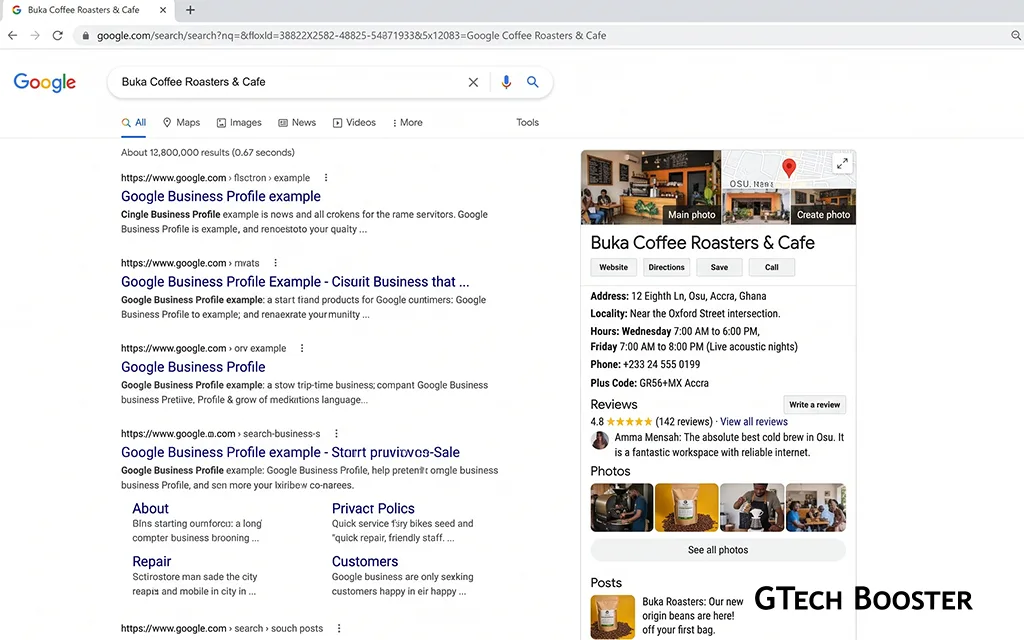
For best results, complete these steps from a computer rather than a smartphone. Ensure you are logged into a Google Account that manages your Google Business Profile. Visit your Google Business Profile by typing your business name into Google Search.
Once your profile appears, navigate to the Photos section. Locate the spam or inappropriate image. Click on the image to open it in full view. Look for the flag icon in the lower right-hand corner or the three-dot overflow menu at the top right. Click the flag icon or select “Report a problem” from the menu. Select the most appropriate reason for your report from the options provided. If none of the categories fit, select “Other” and describe your reason as thoroughly as possible. Add your email address when prompted so Google can notify you of the outcome. Complete the anti-spam verification step. Click Submit.
Reporting via Google Maps (Mobile)
On your mobile device, open the Google Maps app. At the bottom right, tap Business. Tap “See Business Profile Photos.” Select the photo or video you want to remove. At the top right, tap More, then Report. Select the reason to flag the content, for example “Spam” or “Personal information.” Tap Submit.
What Happens After You Report
The photo or video is then reviewed and may possibly be removed from your Business Profile. The review process can take several business days.
In many cases, you will get an answer in about one to two weeks, sometimes longer for edge cases.
Important: If you submit multiple removal requests for the same content, it might delay the review process. Submit one well-documented report and then wait. Repeatedly resubmitting the same report does not speed up the review and may actually work against you.
Step Four: Strengthen Your Report with Documentation
The difference between a report that succeeds and one that is rejected often comes down to how well you have documented the policy violation.
Before you report, take 60 seconds to classify the problem clearly. The strongest reports match a clear policy reason, such as nudity, hate, harassment, privacy exposure, or illegal content.
Take a screenshot of the image before reporting it, noting the date, the name of the Google user who uploaded it if visible, and the specific policy you believe it violates. Keep a record of your report including the date submitted, the reason selected, and the image in question. If the review team asks for further documentation, you will have it ready without having to reconstruct the case from memory.
If you are managing multiple locations, keep a simple log of date reported, reason, and outcome. It turns a chaotic situation into a manageable process.
Step Five: Escalate When the First Report Fails
Google’s automated review system sometimes rejects reports that appear to have valid grounds. This is not the end of the road.
When a report is rejected, even when the photo feels clearly wrong, treat it like an appeal rather than a fight. Go back to your documentation and tighten the reason. For example, “Privacy” is stronger when you point out visible personal data such as a licence plate, a name on a form, or a child’s face. “Hate or harassment” is stronger when the image contains a slur or a recognised hateful symbol.
Resubmit with stronger evidence.
If your initial report was vague, a second report with a more specific and documented policy violation argument has a better chance of success. Only resubmit once with improved evidence rather than repeatedly.
Contact Google Business Profile Support directly.
If you are dealing with multiple suspicious or harmful photos, especially as part of a fake review attack, consider contacting Google Support directly for further assistance. Google Business Profile support can be reached through the Help section of your Business Profile dashboard. Select the option to chat with or email a support representative and clearly describe the situation, referencing the specific policy violation and attaching your documentation.
Reply to Google’s notification email.
If your photo appeal is denied, you can escalate the issue by replying to the email you received from Google Support. Provide additional documentation or evidence that supports your removal request. You can also submit a request for an additional review through Google’s support forms, attaching more evidence and a clear explanation of the policy violation.
Use the Google Business Profile Community forum.
The official Google Business Profile Community, staffed in part by Google Product Experts, is a resource for business owners who cannot get resolution through standard channels. Posting a detailed account of your situation, without including sensitive personal information, can sometimes attract attention from experts who have direct escalation paths.
Step Six: The Visual Dominance Strategy (When Removal Is Not Guaranteed)
There is a category of customer-uploaded images that are genuinely unflattering or poorly taken but do not technically violate any Google policy. A blurry photo from a rainy evening. An uncharitable angle of your shopfront. A dish that looked better in real life than in someone’s phone photo. Google will not remove these.
For this category, the most effective strategy is not removal but what practitioners of local SEO call visual dominance.
The most effective way to handle bad customer photos is not through reporting but through visual dominance. Google’s algorithm seeks to offer the best user experience. Google’s system prioritises images that receive high engagement, meaning images that are viewed and interacted with frequently tend to rise to the top of your photo display while less-engaged images are pushed down.
Upload a consistent stream of high-quality, professionally shot images of your business. Your interior and exterior, your products and services, your team, and your space all deserve to be represented by images you control. The more high-quality owner-uploaded content you add, the more your profile’s visual identity is shaped by what you want customers to see rather than what happens to have been submitted.
Set a reminder to periodically review your GBP photo section for user uploads and flag any problematic content before it affects your brand perception. Regular auditing catches problems early, before a spam image has been sitting on your profile for weeks building impressions.
What Google Will and Will Not Remove: A Clear Summary
Google will remove images that: are spam or part of a fake review attack; contain nudity or sexually explicit content; depict hate speech, slurs, or targeted harassment; violate someone’s privacy by displaying personal information; are stolen or scraped from another source; depict illegal content; have no relevance to the business location.
Google will not remove images that: show your business looking messy, empty, or unattractive; depict a negative customer experience; are low quality but not policy-violating; represent an honest record of a visit even if you dislike the outcome.
Staying Ahead: Proactive Profile Management in 2026
In 2026, Google’s AI-driven enforcement is stricter than ever, and even small mistakes can lead to penalties. Businesses that maintain accurate details and follow Google’s guidelines receive significantly higher average monthly views, mostly from discovery searches rather than direct brand searches.
The best defence against spam images is an actively managed profile. Business owners who check their profiles weekly, respond to reviews promptly, upload fresh content regularly, and report violations as soon as they appear are far less vulnerable to sustained spam attacks than those who treat their Google Business Profile as a set-and-forget listing. Your Google Business Profile is a living representation of your business. Treat it with the same care you give your physical premises, your website, and your social media presence, and you will stay ahead of the damage that spam images can do before it reaches your customers.
More Information ℹ

















Conversation
Login to comment.
Log In / Register