
Four essential tools for Chrome users
Chrome packs powerful built-in tools for reading, multitasking, PDF editing, and tab organization. These features—Read Aloud, Split View, PDF annotations, and Tab Groups—boost productivity without extensions. Here's a straightforward guide to using them.
Chrome packs powerful built-in tools for reading, multitasking, PDF editing, and tab organization. These features—Read Aloud, Split View, PDF annotations, and Tab Groups—boost productivity without extensions. Here’s a straightforward guide to using them.
Read Aloud

Tired eyes? Chrome’s native Read Aloud turns any webpage into an audiobook with text highlighting.
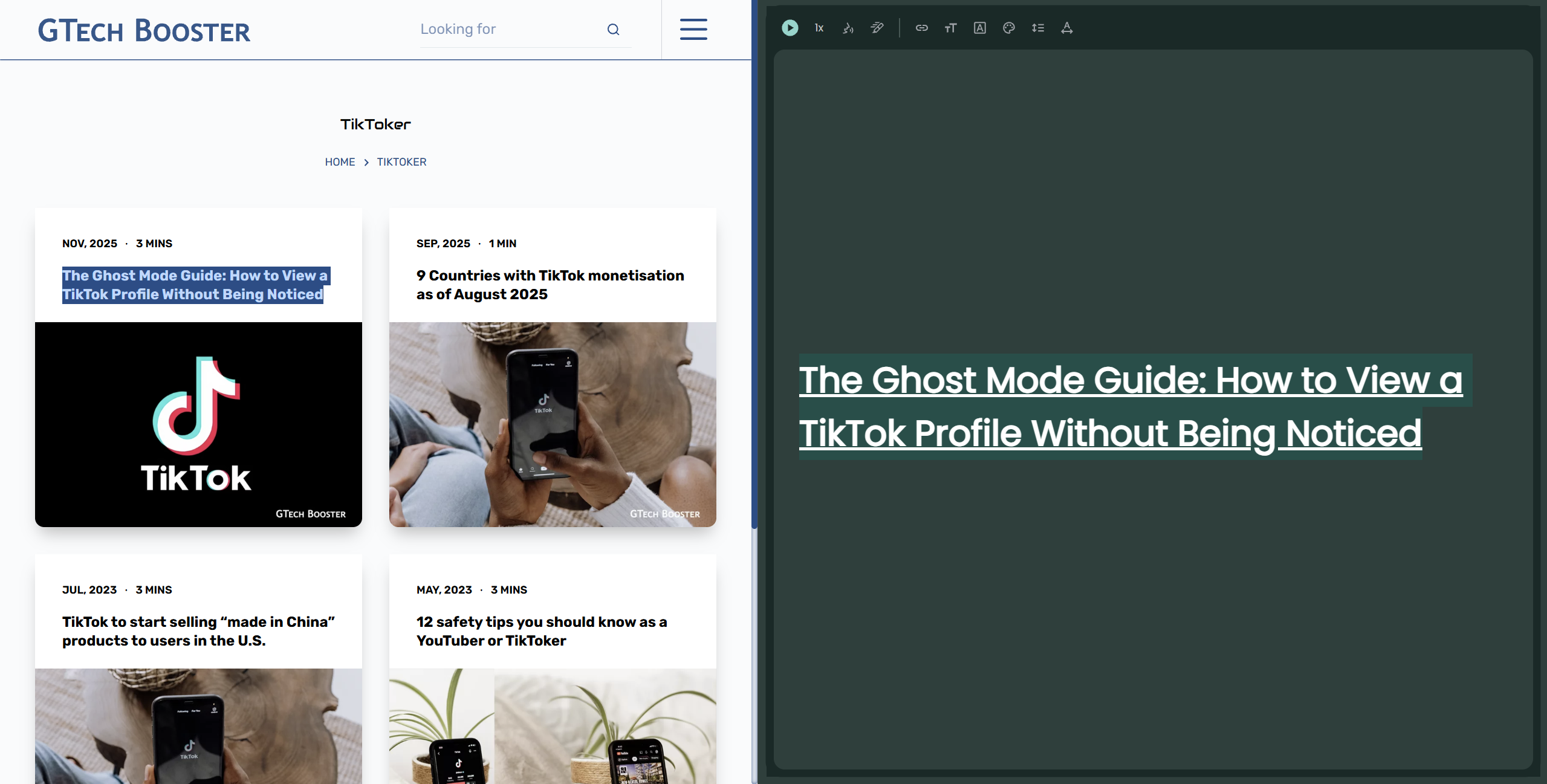
- Right-click text or a webpage and select “Reading mode” or press K to start playback.
- Chrome highlights words as it reads aloud.
- Adjust speed via the side panel and choose voices for articles, docs, or research.
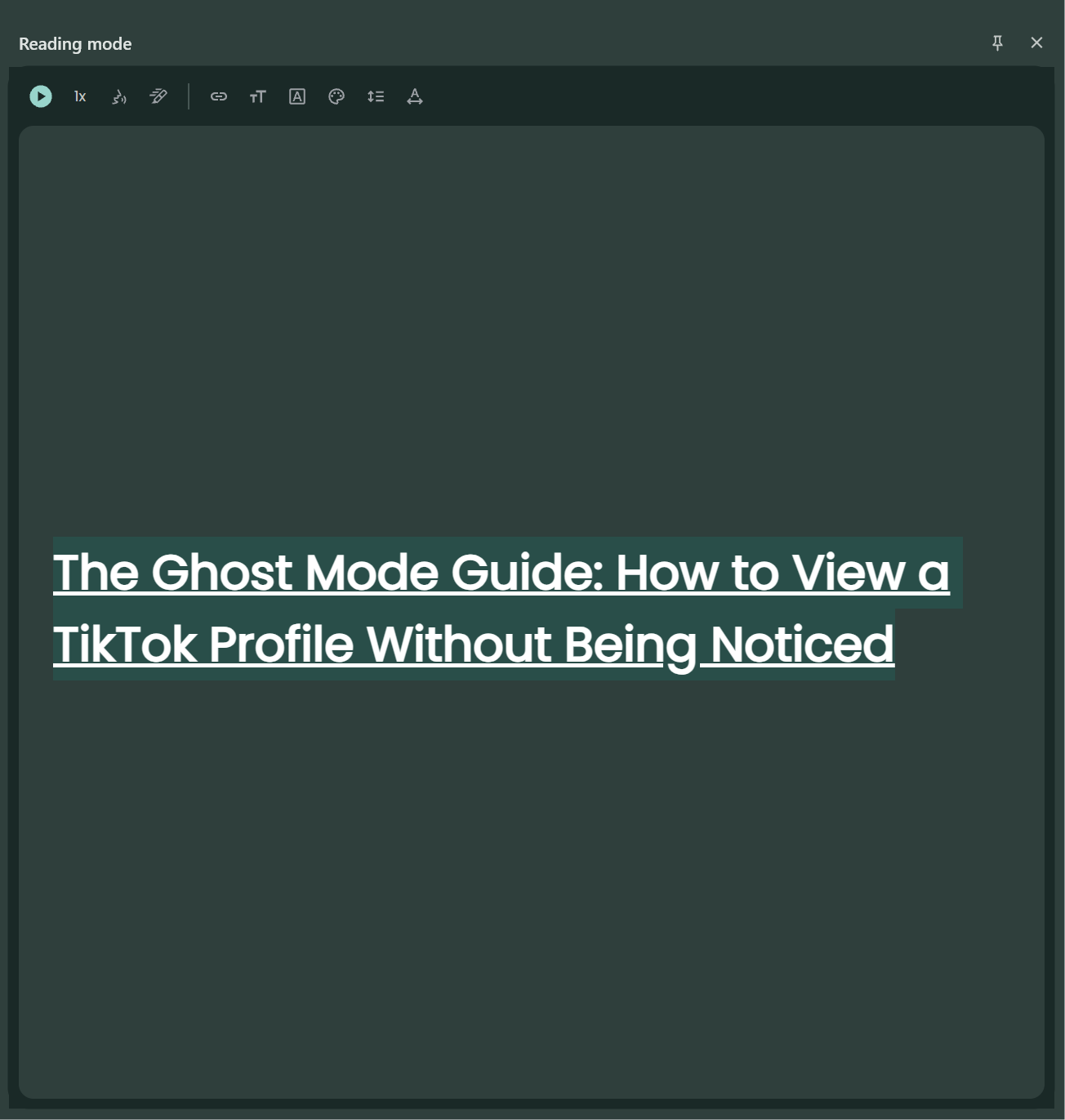
Pro tip: Pin the side panel for continuous play across tabs.
Split View
Google Chrome introduced Split View in late 2025 as a native feature for multitasking, allowing two tabs to display side-by-side within the same window. This eliminates the need for multiple windows or extensions for basic split-screen browsing. Users can compare pages, watch streams while working, or reference content easily.
- Drag a tab to your screen’s left or right edge to snap it into split-screen mode.
- Resize the divider to work two pages side-by-side.
- Use Alt + Shift + P for picture-in-picture video alongside documents.
- Drag a tab to the left/right screen edge until it snaps (or Ctrl + Shift + D on Windows).
- Resize freely, compare docs live, or reference while typing.
PDF Annotations
Chrome’s PDF viewer crushes Adobe with instant annotations—no downloads required.
- Open PDFs directly in Chrome.
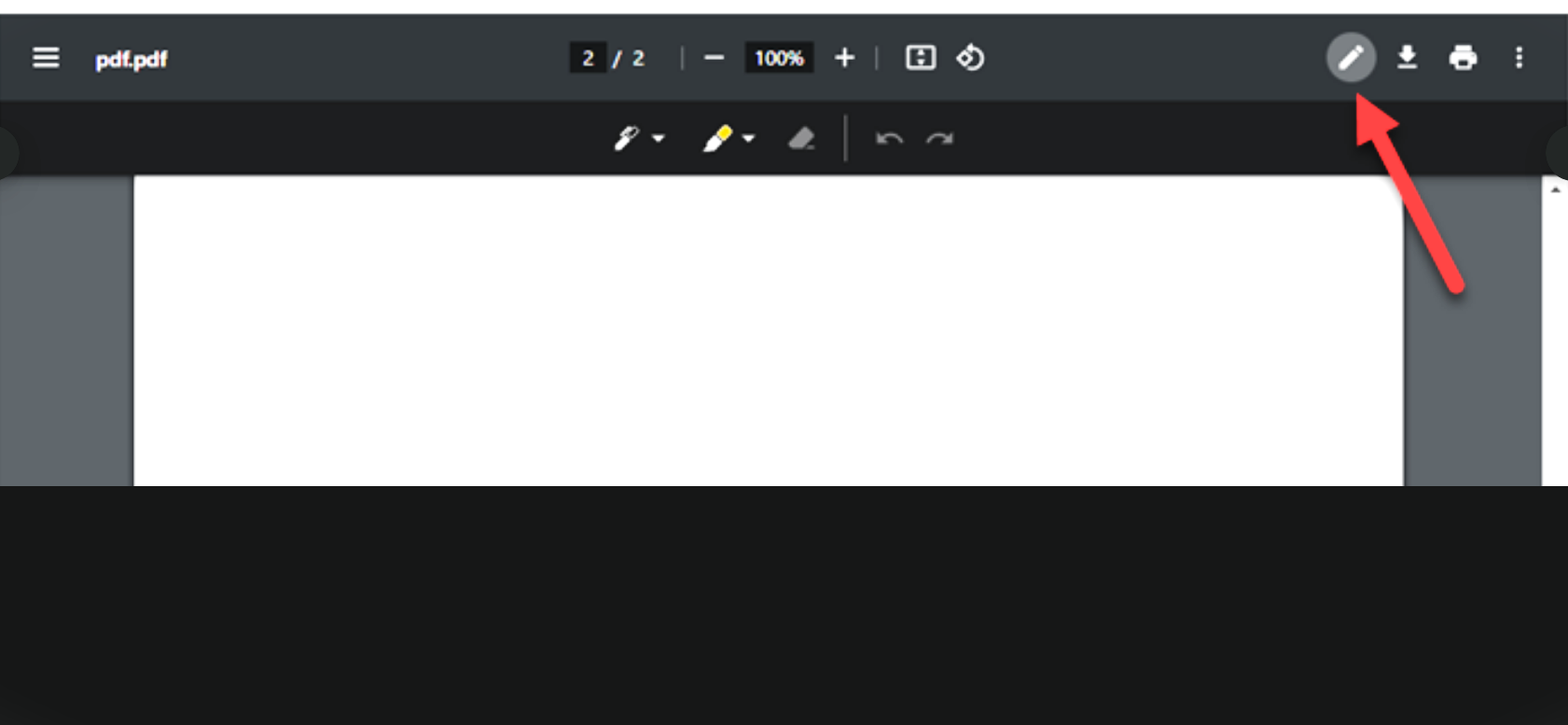
- Highlight text with H, add notes via right-click menus, or draw with the markup tools.
- Annotations save automatically for sharing annotated versions. Sticky notes (N), ink pen. Changes auto-save; share annotated links via “Copy annotated PDF.”
Students and reviewer; This is your new weapon. This feature allows users to mark up PDFs without needing extensions for simple tasks.
Tab Groups
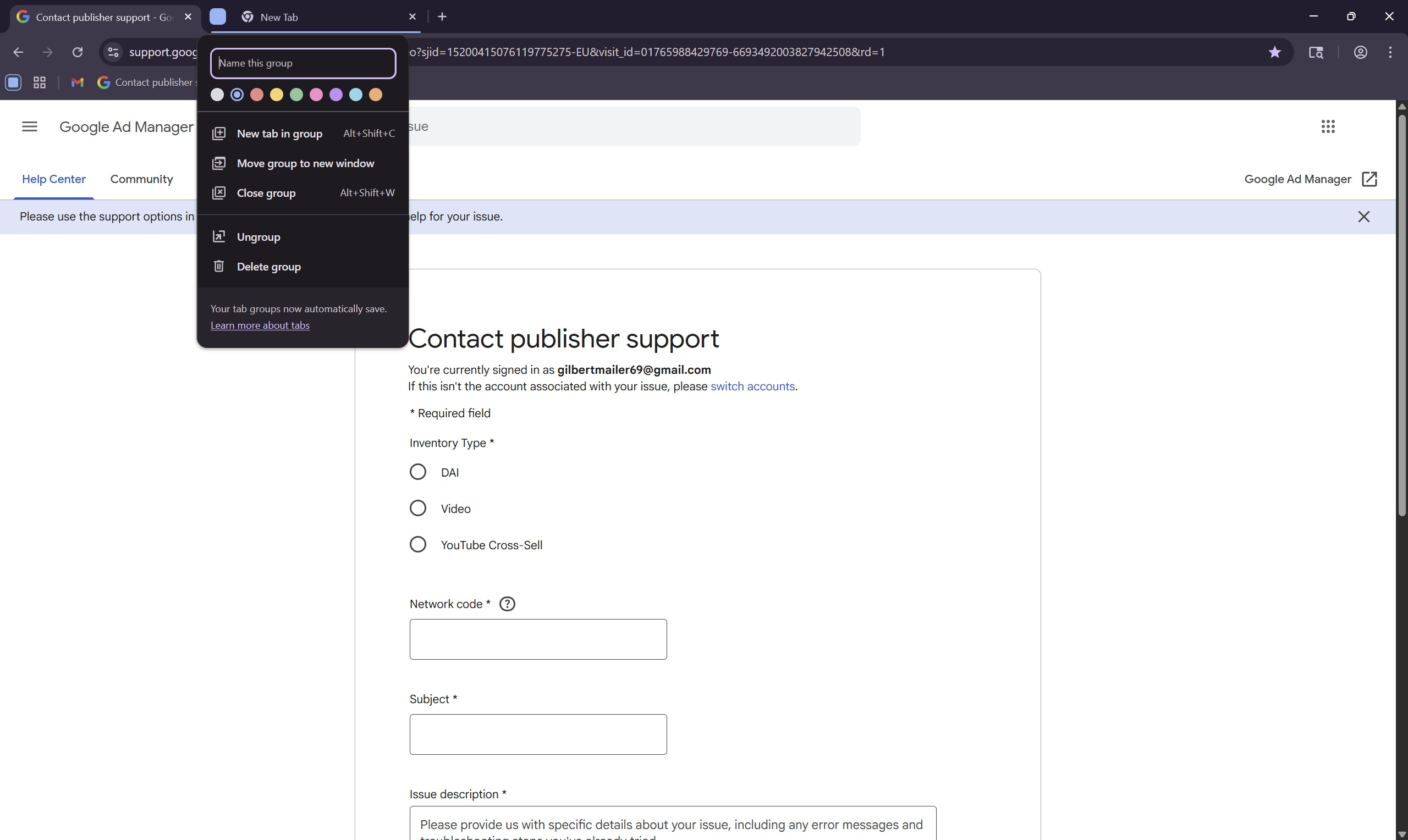
Drowning in 50 tabs? Tab Groups auto-organize, color-code, and collapse your chaos.
- Right-click a tab → “Add to new group,” pick a color and name.
- Collapse groups with Ctrl + Shift + E to save space.
- Search all open tabs via Ctrl + Shift + A to find grouped content fast.
Your RAM thanks you.
Stack them for god-mode: Read Aloud in one split pane, annotate PDFs in another, Tab Groups for projects. Chrome evolves faster than you think—update now (chrome://settings/help) and reclaim hours daily. Which feature hooks you first?
More Information ℹ


Gabby















Be polite and constructive with your point.